|
How Do I Print the CSL Window
from a FastChip Design?
FastChip, per se, does not have a print function. There
is no direct way to print out the graphical content of the CSL window.
However, there are at least two potential printing
solutions.
- Cut and paste the FastChip image to another Windows
package that supports printing graphics.
- Generate a FastChip project report. The report is not
graphical, but does show connectivity and module option settings.
Cut and Paste to Other Package with a Graphics Printing Capability
 From
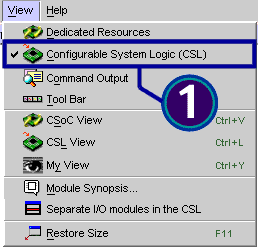
the FastChip menu bar, choose View and de-select all view options
except Configurable System Logic. From
the FastChip menu bar, choose View and de-select all view options
except Configurable System Logic.
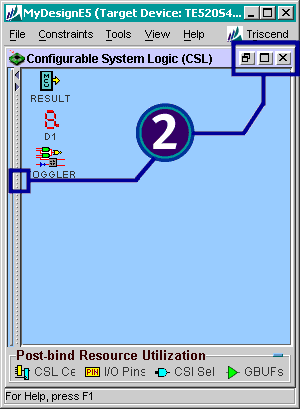
 Resize
the FastChip window until it matches your desired graphic size. Maximize the
CSL window within the FastChip windows and close the Module window. Resize
the FastChip window until it matches your desired graphic size. Maximize the
CSL window within the FastChip windows and close the Module window.
 Make
sure that FastChip is the active window. Press <Alt>-<Shift>-<PrintScrn>
to copy the FastChip bitmap graphics to the Windows cut-and-paste buffer. Make
sure that FastChip is the active window. Press <Alt>-<Shift>-<PrintScrn>
to copy the FastChip bitmap graphics to the Windows cut-and-paste buffer.
 Open
your favorite text editor or graphics editor and paste the image into a
document. Open
your favorite text editor or graphics editor and paste the image into a
document.
 Print
the FastChip image from your favorite text or graphics editor. Print
the FastChip image from your favorite text or graphics editor.
Generate a FastChip Project Report
The method described above shows the graphical view of
your FastChip project but does not show how the module is configured nor does
it show the connectivity between modules.
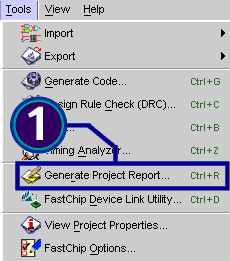
From
the FastChip menu bar, choose Tools à
Generate Project Report.
Check
the View generated report option box and click OK.
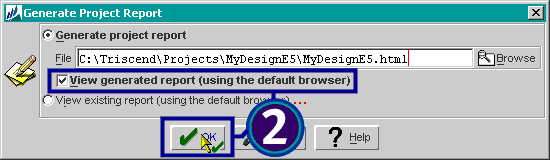
FastChip
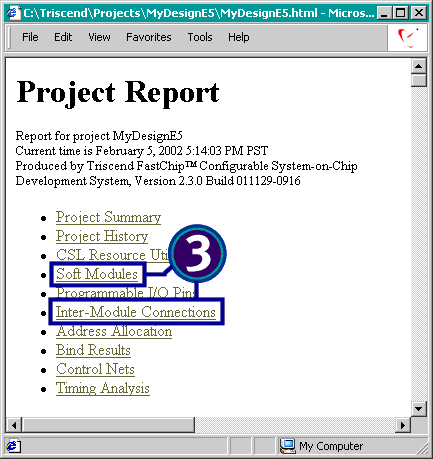
then displays the project report using your favorite web browser. To view
the module settings, click the Soft Modules link. To view the
connections between modules, click Inter-Module Connections.
|
FastChip Version: 2.3.0
This solution may or may not apply to other versions
of the FastChip development system.
|
 ® ®
©
2002 by Triscend Corporation. All
rights reserved.
|